Using the center display keyboard
A keyboard can be used on the center display to enter characters and search for e.g., destinations using the navigation system, adding contacts in phone book, etc. It is also possible to use handwriting on the screen.
Entering text using the keyboard
The keyboard will only appear at the bottom of the center display in situations when it is possible to write on the screen.

 Field for possible search hits. The word changes as new letters are added. Scroll in the list using the left/right arrows. Tap a word to select it. The keyboard may not support all language selections, in which case this line on the screen will not be displayed.
 The characters that can be entered are language-dependent (see point 7). Tap a character to enter it.
 Several buttons (depending on the context for which the keyboard is being used) will be displayed here. In certain cases, it can be used to enter @, .com or to start a new line.
 Press to hide the keyboard. In cases where this is not possible, the button will not be displayed.
 Tap once to enter one uppercase letter. Double-tap for Caps lock (tap again to return to lowercase letters). Letters entered after the !, . and ? characters will automatically be uppercase. The first letter in the text field or in text fields intended for names, addresses or company names will also automatically be uppercase. The first letter in text fields intended for passwords, web addresses or email addresses will automatically be lowercase unless upper case is chosen.
 Press to display the numbers that can be entered. When numbers are displayed, tap
 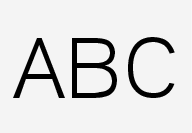 to resume entering text or
 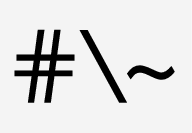 to enter special characters.
 Tap to change the keyboard language (in this example, UK English is the selected language). The characters available will change according to the selected language (2). This button will only be displayed if several keyboard languages have been selected (see the section "Changing keyboard languages" below). Tap to display a list of possible languages and tap a language to use it.
 Tap to enter blank spaces.
 Tap to erase one character at a time.
 Tap to enable handwriting. See the section "Handwritten text" below.
Entering text and performing searches using the keyboard are done somewhat differently in the navigation system. See the section "Filtering destination search results" below.
Tap the button above the keyboard to confirm the text that has been entered (not shown in the illustration). This button's appearance differs depending on the context.
Changing keyboard languages
In order to change keyboard languages, they must first be selected under Settings.
- Pull down the center display's Top view and tap Settings.
- Tap System→Keyboard Layouts.
- Select and one or more of the languages in the list.The makes it possible to change the keyboard layout and characters available depending on the language(s) selected.

When more than one language has been selected, this button (7)[1] will appear on the keyboard.
- Press and hold the button (7).A list will be displayed.
- Tap the desired language. If more than four languages have been selected in Settings, scroll in the list.The keyboard layout and characters available will change to the selected language.
Special characters

- Press and hold a character key.A box with available characters will open.
- Tap the desired character. If none of the special characters is selected, the key's initial character will be entered.
Handwritten text
Tap button (10), see the overview illustration above, to enter the handwriting mode.

- Area for entering characters.
- Text box where the characters entered in area (1) appear.
- Suggested characters. Scroll in the list if necessary.
- Blank spaces.
- Tap to erase one character at a time.
- Tap to return to the standard keyboard.
- Press to hide the keyboard. In cases where this is not possible, the button will not be displayed.
- Tap to change the keyboard language.
Entering characters
- Enter a handwritten character (1) using a fingertip or by holding e.g., a pen near the screen.Several character suggestions will appear (3). The most likely character will be at the top of the list.Do not touch the screen with sharp objects because this could cause scratches.
Important
- Continue entering characters.If no other choice is made, the character at the top of the list will be used. Tap one of the other characters in the list to use it instead.
Erasing/changing handwritten characters

Characters can be erased/changed in several ways:
- Tap the desired character in the list (3).
- Tap button (5) to erase the character and start again.
- Sweep horizontally from right to left over the handwriting area (1). Erase several characters by swiping over the area several times.
- Tap the "x" in the text box (2) to delete all characters.
New lines
